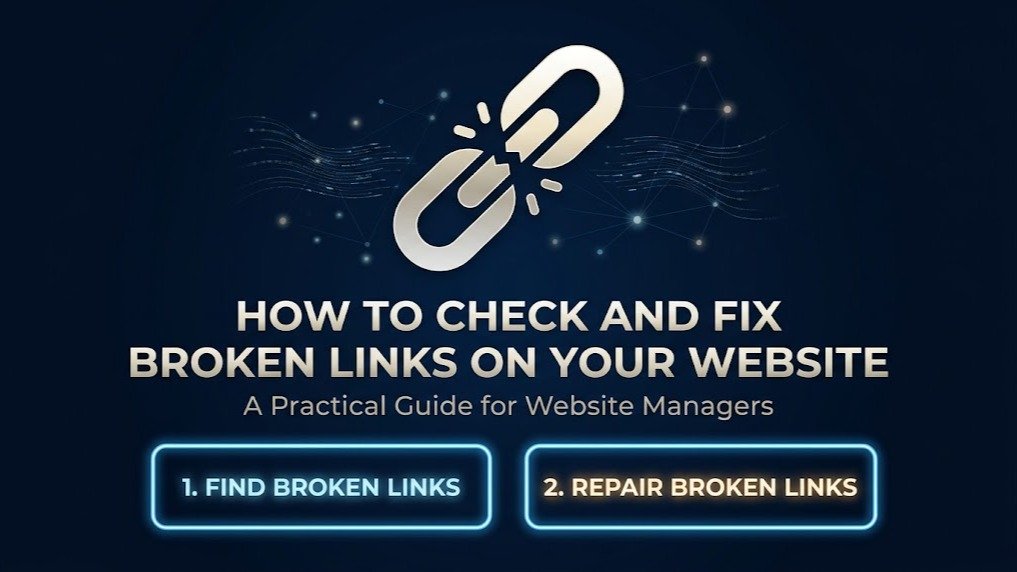
Links help visitors navigate a website, find related information, and access useful resources. They also connect different pages and help people explore your content.
However, links do not always keep working. Pages get deleted, URLs change, websites shut down, and external resources become unavailable. Over time, these changes can leave your website with broken links.
Checking your links regularly helps you find these problems and fix them before they affect your visitors.
What Is a Broken Link?
A broken link is a hyperlink that fails to take a visitor to the page or resource they expect.
For example, someone might click a link to an article and land on a 404 Not Found page because the original content has been removed or the URL has changed.
Other HTTP errors can also indicate that a page is unavailable. However, not every failed request means a link is permanently broken. Sometimes, the destination website is experiencing a temporary server issue.
Why Is It Important to Check Broken Links?
Imagine a customer clicking a link on your website to learn about a service, only to find an error page. They may leave without finding the information they need.
Broken links can create similar problems for readers, potential customers, and anyone trying to navigate your website.
Regular link checks can help you:
-
Find pages that are no longer available
-
Identify outdated URLs
-
Check redirects and navigation links
-
Maintain older blog posts
-
Review links to external resources
-
Identify technical issues that need attention
Fixing these problems makes your website easier to use and helps you maintain a better overall experience for visitors.
How to Find Broken Links
A good starting point is to check the pages that matter most to your website.
The WaooTools Broken Links Checker lets you enter a webpage URL and review the links found on that page.
Depending on what the tool can access, you can use the results to identify links that return errors, redirect to other URLs, or appear to be unavailable.
Once you have the results, you can investigate the affected links and decide which ones need to be updated or removed.
Step 1: Start With Your Most Important Pages
You do not need to check every page at once. Begin with the pages that attract visitors or support your business goals.
These may include:
-
Your homepage
-
Main service pages
-
Product pages
-
Landing pages used in advertising campaigns
-
Popular blog posts
-
Contact pages
-
Product and blog categories
For example, if a product page contains a broken link to its size guide or product information, fixing it may be more important than correcting a link on an old article that receives very little traffic.
Prioritize the pages that have the greatest impact on your visitors.
Step 2: Check Internal and External Links Separately
Understanding where a broken link leads can make it easier to find the cause.
Internal links point to other pages on your own website. These links may stop working when you delete a page, change a URL, or reorganize your website.
The WaooTools Internal Links Checker can help you review links pointing to pages within your website.
External links lead to pages on other websites. Their destinations may change without your knowledge, especially when another website removes content or updates its URL structure.
You can use the WaooTools External Links Checker to review links pointing to external domains.
Checking these two types separately helps you identify whether the problem is within your own website or on an external resource.
Step 3: Understand Common HTTP Errors
When checking links, you may come across different HTTP status codes. Understanding them helps you decide what to investigate.
404 Not Found
A 404 response means the requested resource could not be found at that URL.
This can happen when a page has been deleted, a URL has changed, or a link contains a typing mistake.
410 Gone
A 410 response indicates that the resource has been removed and is no longer available. It is commonly used when a page has been intentionally taken down.
5xx Server Errors
These responses indicate a server-side problem. The destination website may be temporarily unavailable, overloaded, or experiencing another technical issue.
If you encounter a 5xx error, check the URL again later before deciding that the link is permanently broken.
It is also worth remembering that redirects are not necessarily errors. A redirect may be working as intended, although you should check that it leads to the correct destination.
Step 4: Fix the Broken Links
After identifying a broken link, review the destination and choose the most appropriate solution.
Replace the URL
If the content has moved to another page, update the link to point directly to the correct URL.
For example, if a guide has moved from an old address to a new one, update the link wherever you reference it.
Remove the Link
If the destination no longer exists and there is no suitable replacement, remove the link. You can also rewrite the surrounding sentence if the reference is no longer useful.
Set Up a Redirect
If you manage the website and a page has moved permanently, a redirect may help visitors reach the new location through the old URL.
When the replacement page covers the same topic, a relevant redirect can preserve a useful path for visitors.
If you are changing URLs across an entire website, follow Google's guidance on site moves with URL changes. It explains how to handle redirects and update links during a site migration.
Check Broken Links in Older Blog Posts
Older blog posts can contain links that have stopped working since the content was published.
These links may point to research papers, statistics, product pages, online tools, or articles that have since been removed or moved.
Review older posts from time to time, especially those that still attract traffic.
When an external source is no longer available, look for a reliable alternative that supports the same point. If you cannot find a suitable replacement, consider removing the reference rather than sending readers to an error page.
Check Links After a Website Redesign
A website redesign can introduce broken links when pages are renamed, URLs change, or the site structure is reorganized.
For example, a service page might move from /services/old-name/ to /services/new-name/. Any links that still point to the old address may stop working unless the old URL redirects correctly.
To reduce these problems, follow these steps after a redesign:
-
Crawl the updated website and review the results.
-
Test important URLs from the previous website.
-
Check that redirects point to the correct pages.
-
Review internal navigation and contextual links.
-
Investigate unexpected 404 responses.
-
Update links that still use outdated URLs.
Ideally, prepare a list of important URLs before launching the redesigned website. This makes it easier to identify missing pages and verify that essential links still work.
How Often Should You Check for Broken Links?
The right checking schedule depends on how often your website changes.
A large ecommerce website with regularly updated products may need more frequent checks than a small business website with only a few pages.
You should also run a link check after making significant changes, such as:
-
Moving your website to a new domain
-
Changing URL structures
-
Redesigning your website
-
Deleting or moving content
-
Updating your CMS or major plugins
For websites that publish content regularly, periodic checks can help catch problems before they go unnoticed for too long.
Final Thoughts
Broken links can appear on almost any website as content changes and pages move. The important thing is to identify them and deal with them properly.
Start with your most important pages, check internal and external links separately, and investigate HTTP errors before deciding what needs to be fixed.
With regular checks and a simple maintenance routine, you can keep your links useful, make navigation easier for visitors, and avoid leaving outdated URLs across your website.